
SPV (Private Virtual Space) is now the mandatory control panel for company interaction with ANAF. It is no longer just a place to check debts; it is the official legal communication channel. Physical paperwork is being phased out.
You need SPV for:
- submission and retrieval of invoices through RO e-Factura;
- official notices and enforcement notifications;
- tax declaration workflows.
Without SPV, normal business operations in Romania become difficult or blocked.
Contents
- Quick Access (Official Links)
- Individual Guide (Without Paid Certificate)
- Company Guide (With Digital Certificate)
- Common Issues and Fixes
- Frequently Asked Questions
Quick Access (Official Links):
If you already know the process, use these direct ANAF links (open in new tab):
- 🔴 Individual Registration (CNP) - Password or certificate based.
- 🔵 Legal Entity Registration (CUI) - Requires digital certificate.
- 🟢 Credentials / Password Recovery - If login data was lost.
Quick Guide: Individuals (Without Digital Certificate)
For individuals who need access for contributions or tax declarations, a paid digital certificate is not always required. ANAF supports online visual identity verification.
Method 1: Video Identification (Recommended)
This is the fastest 100% online method and avoids in-person queues.
- Access the Individual Registration Form.
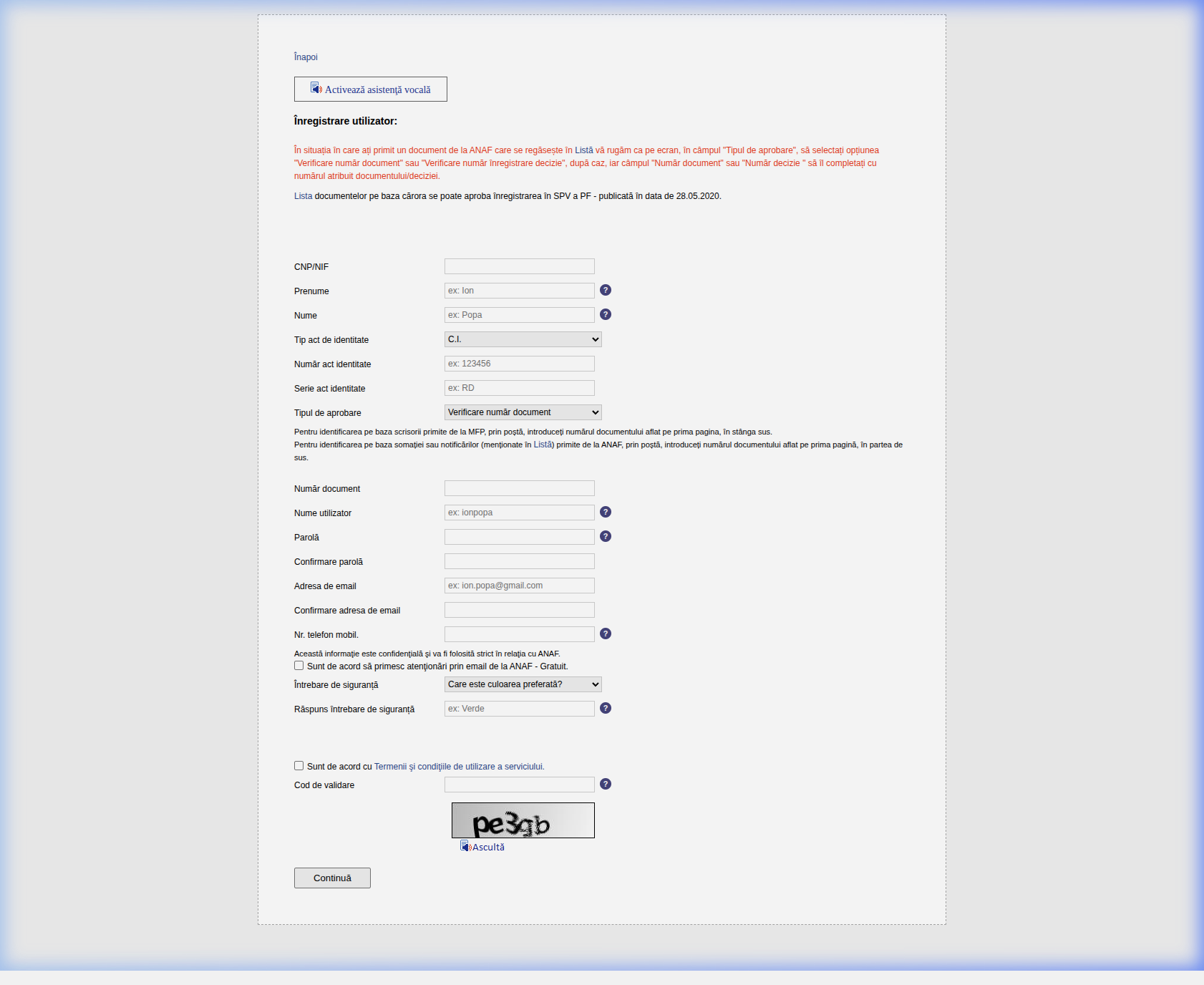
- Fill in personal data (name, CNP, ID series).
- Select: "Video identification at distance".
- Make sure to accurately choose your identification method to trigger the online videoconference instead of counter attendance.
- Schedule a short Zoom/Skype session with an ANAF inspector for identity confirmation.
- Important: after form submission, you receive scheduling instructions by email. You have 10 days to complete this step.
- What they ask: basic identity validation questions (name, address, prior declared income context). Missing the scheduled call cancels the request and you need to restart.
Method 2: Using Existing Registration Number
If you already received ANAF correspondence in previous years:
- Select: "Document number verification".
- Enter received document number and date.
- Account may activate instantly, without video call.
Complete Guide: SPV Registration for Companies (Legal Entities)
If you represent a company (LLC, sole trader with CUI, corporation), the process is more technical and requires a qualified digital certificate.
What you need before you start
The flow is online but requires preparation:
- Qualified digital certificate (electronic signature token) from providers such as CertSign, DigiSign, Trans Sped, AlfaTrust.
- Confirmation document signed by certificate provider.
- Supporting legal PDFs:
- company tax identification (CUI);
- representative identity card;
- incorporation or trade registry document proving representation rights.
💡 Pro Tip: Practical tip: prepare all files in a single ZIP archive (max 5 MB) if the form requires archive upload, although individual signed PDFs can also be accepted depending on interface version.
Step 1: Get confirmation document
- Go to ANAF online services and open electronic declaration section.
- Download standard confirmation form.
- Send form to your electronic-signature provider.
- Receive signed document back. This is your technical passport for enrollment.
Step 2: Fill registration form
- Access anaf.ro -> Private Virtual Space registration.
- Select Legal Entities -> Registration with digital certificate. Or click HERE for the updated link.
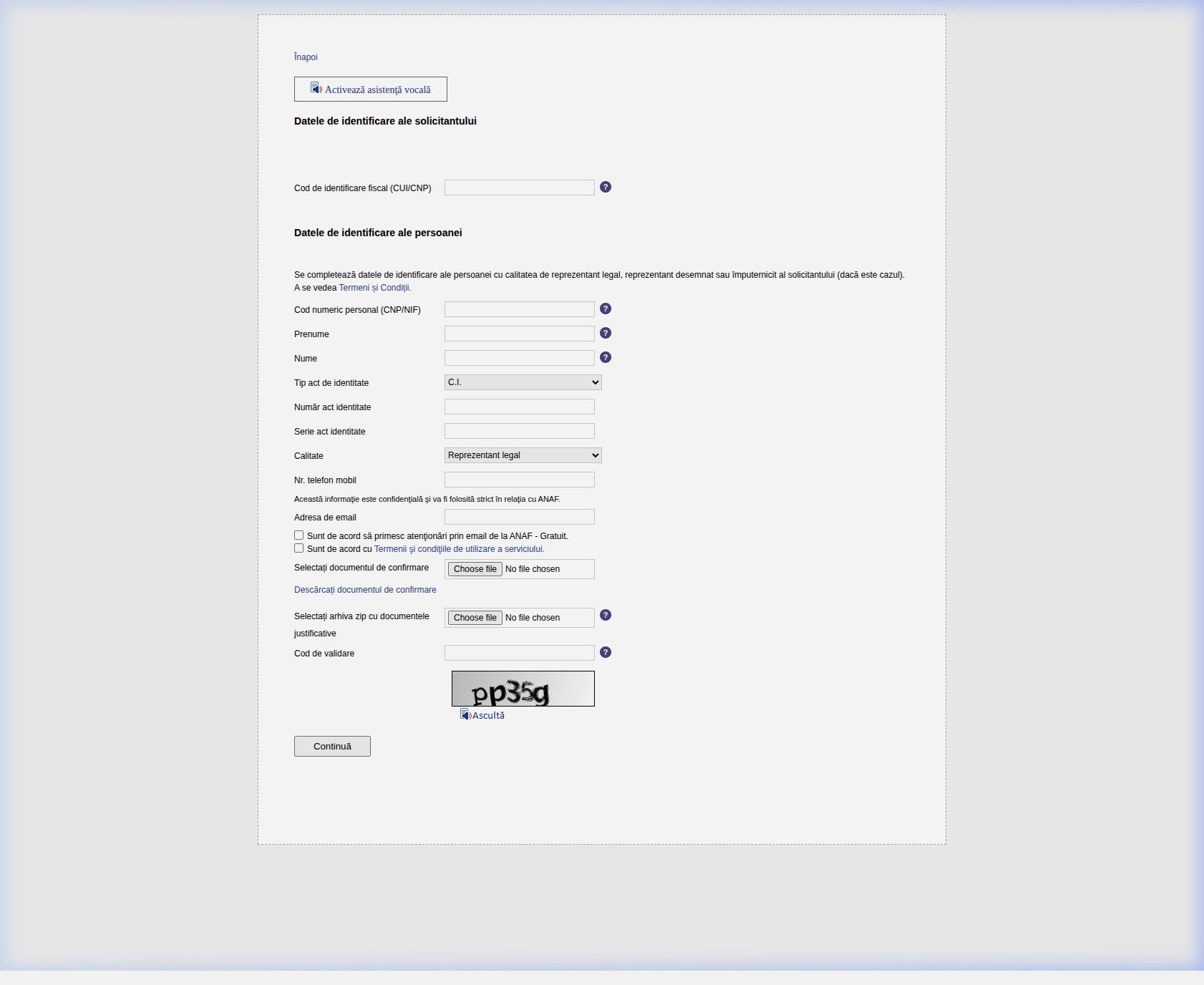
- Notice the mandatory fields which require the company's Tax ID (CUI) and your legal representation quality (Representative vs Proxy).
- The page reads token certificate data automatically (USB token must be connected).
If token middleware is not installed correctly, the certificate may not be detected in browser. Validate token drivers before starting the flow to avoid repeated failures.
Pre-start checklist
- USB token connected.
- Signature app (Token Manager, Safewhere, etc.) open.
- Admin rights available on workstation (sometimes required).
- PDF reader installed for smart PDF forms.
- Private/incognito browser mode used to avoid cache issues.
- On macOS, use Chrome/Firefox if Safari has certificate compatibility issues.
Step 3: Upload required data
In the form, provide:
- Entity CUI;
- Role: legal representative or authorized delegate;
- Email: secure, monitored address.
Upload documents:
- provider confirmation document (Step 1);
- supporting archive (ID + company docs), digitally signed where required.
Step 4: Validation and approval
After submission, ANAF issues registration number by email.
- Automatic approval: in some cases, when data matches existing registries.
- Manual approval: when inconsistencies exist; usually resolved in 24-48h.
Official legal processing windows can be longer, but practical processing often depends on data consistency and certificate validity at submission time.
What to do after approval
You can authenticate using certificate login in SPV.
First priority:
- verify e-Factura section;
- check SPV Messages for historical notices;
- establish weekly monitoring routine (or email alerts).
If you use an accountant or external operator, define a clear responsibility model: who receives alerts, who validates submissions and who handles escalation when ANAF responses require action.
Legal deadlines start from message delivery in SPV, not from the moment you read it.
Common Issues and Fixes
Based on repeated onboarding cases, these are the most frequent problems:
1. "Certificate revoked" / "No rights"
- Cause: token not read correctly or wrong CUI selected.
- Fix: validate token status, update drivers and confirm selected company CUI. If certificate was recently renewed, re-associate it in SPV before retry.
2. "No CIF for which you have SPV rights"
- Cause: ANAF registry not synced after certificate renewal, or incorrect association.
- Fix: wait up to 24h post-renewal; if persistent, repeat enrollment/renewal flow and verify legal representation rights in the submitted documents.
3. Third-party app connection errors (SmartBill/Saga etc.)
- Cause: physical token missing or outdated drivers.
- Fix: open token management app before launching accounting software, then re-authenticate inside the accounting platform using the certificate flow.
4. "Altered document" upload error
- Cause: ZIP filenames include special characters or archive exceeds size limits.
- Fix: rename files simply (for example
cui.pdf,id.pdf) and keep archive below 5 MB.
5. Browser errors during submission
- Cause: cache/session conflicts, blocked pop-ups, outdated plugin state.
- Fix: retry in private browsing mode, clear cache and use a supported browser (usually Chrome/Firefox for certificate flows).
Frequently Asked Questions
Can I access multiple companies with one certificate?
Yes. One certificate can be used across multiple companies if legal authorization exists for each.
How long does approval take?
Officially up to 30 days, but automatic approvals can be immediate. Manual reviews often complete in 2-3 business days.
What if certificate expired?
Renew with certificate provider and update SPV enrollment data accordingly.
Can one certificate be used for unlimited companies?
Yes, as long as valid legal authorization exists for each company (representative mandate or power of attorney).
Is Form 150 mandatory for SPV registration?
Form 150 can be generated automatically in online flow. If automatic matching succeeds, physical submission is typically not required. If ANAF requests in-person validation, printed form and supporting documents become mandatory.
How do I create SPV for an existing company?
Same procedure applies. If previous representative/accountant already has access, revoke/update user rights and add new authorized user with valid certificate.
What if ANAF asks me to appear at the counter?
If automatic validation fails, ANAF may request in-person verification. Bring printed Form 150 (if requested), identity card and representation documents.
Which documents should be uploaded in ZIP archive?
Usually:
- certificate holder ID;
- company legal/registry document;
- provider-signed confirmation document. If ZIP fails, upload individual PDFs where interface allows.
How is confirmation done for DigiSign / CertSign / other providers?
Process is similar for all providers:
- download blank ANAF confirmation document;
- sign with your token;
- send to provider;
- receive countersigned final document for SPV upload.
How do I upload additional documents after account activation?
Use the dedicated SPV request/deposition forms to receive valid registration numbers. Avoid informal messaging for official submissions.
Is this process the same for new and old companies?
Yes. The technical flow is the same; old companies may simply require additional cleanup if previous delegates are still registered.
Next step after SPV: most companies set this up for e-invoicing — see our complete e-Invoice compliance guide and, if you run an online store, the e-Invoice integration guide for Shopify and WooCommerce. And if you want invoices submitted to ANAF automatically, we build custom software integrations with your invoicing systems.